

🧑💻 Tutorial: Using page blocks
This guide explains how to use 'page blocks' to compose and customize the content of your webpage. Page blocks are the building blocks that allow you to create a page layout quickly and flexibly.
1. Adding blocks to your page
There are two main methods for adding new blocks to your 'Page content workspace': via quick additions or through the block palette.
Quick add blocks
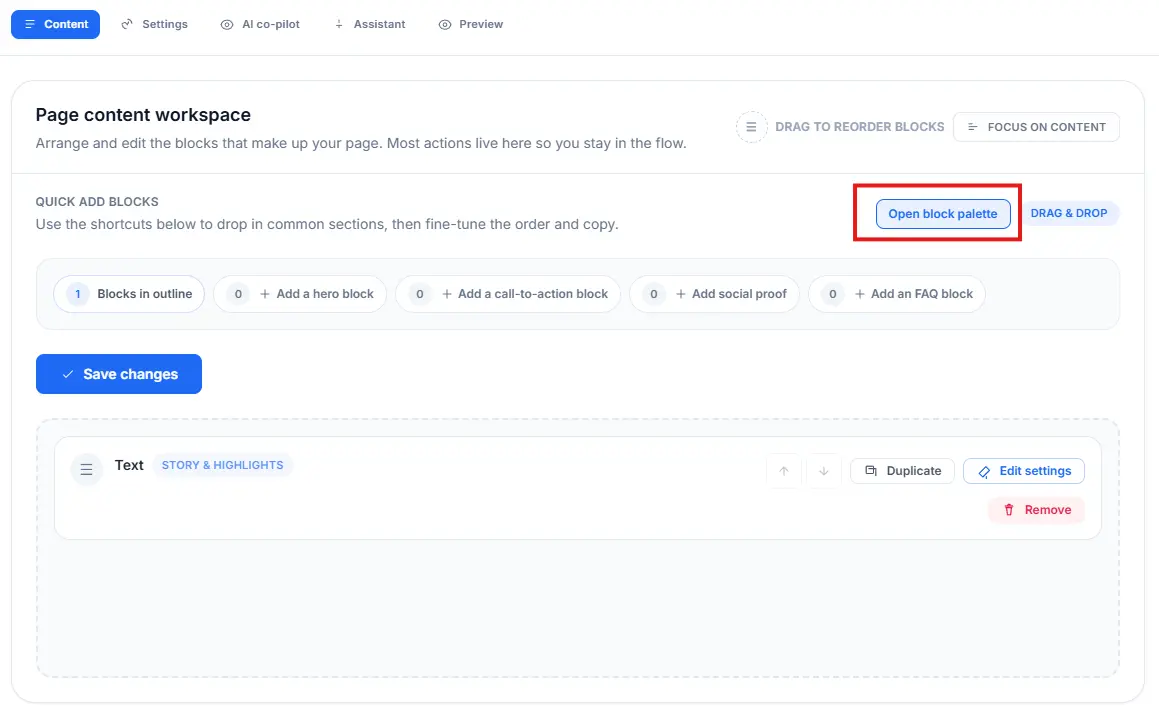
Under the QUICK ADD BLOCKS section, you'll find shortcuts for frequently used blocks:
- Click + Add a hero block to add a prominent section to the top of the page.
- Click + Add a call-to-action block to add a section with a clear prompt for action.
- Click + Add social proof to add testimonials or third-party validation.
- Click + Add an FAQ block to add a section for frequently asked questions.
Using the block palette
For a complete overview of all available blocks:
- Click the Open block palette button in the top right of the 'Page content workspace'.
- In the palette, you can browse through different categories of blocks (e.g., Text, Images, Media, Forms).
- Click on a block to add it to the end of your page.
2. Managing existing blocks
Once a block is added to the page, you can edit its content, move it, duplicate it, or remove it.
Editing content and settings
- Find the block you want to adjust, such as the default Text block.
- The basic content of the block (like the text in this example) is immediately visible and editable within the workspace.
- For more detailed adjustments, such as layout, alignment, or specific block elements, click Edit settings on the right side of the block.
Customizing block settings
When you click Edit settings, the BLOCK SETTINGS panel opens.
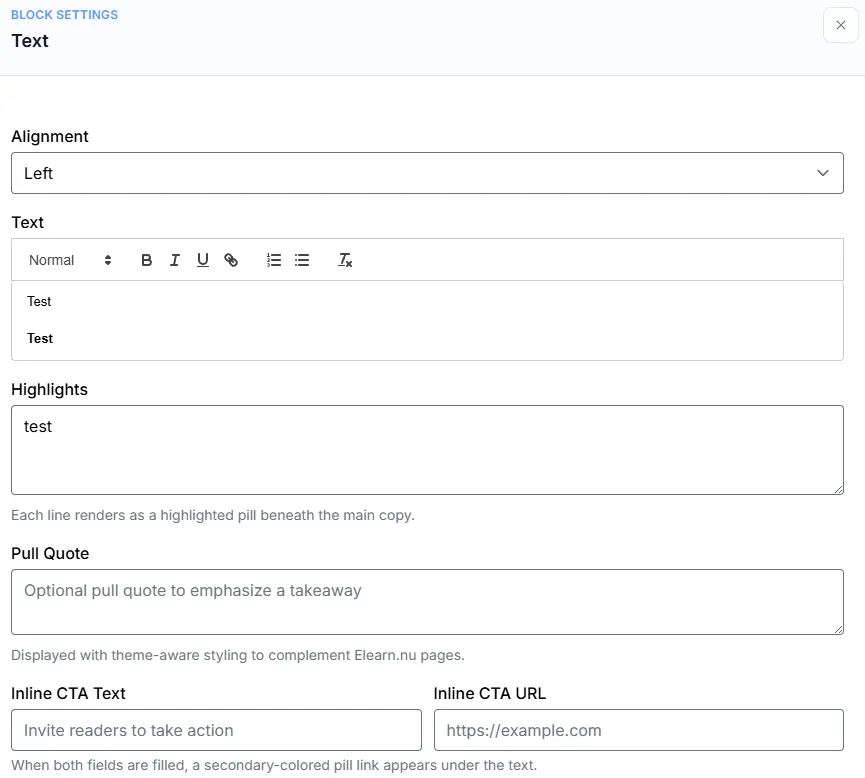
In this panel, you can:
- Adjust Alignment (e.g., Left, Center, Right).
- Edit the main Text using a rich-text editor (bold, italic, lists, etc.).
- Add Highlights (lines that render as highlighted "pills" beneath the main copy).
- Add an Optional pull quote to emphasize a takeaway.
- Add an Inline CTA (Call to Action) by filling in the Inline CTA Text and an Inline CTA URL.
Moving, Duplicating, and Removing Blocks
- Moving: Use the up and down arrows on the right side of each block to shift it within the page, or use the DRAG & DROP feature to drag blocks to the desired position. You can also click DRAG TO REORDER BLOCKS for an overview mode.
- Duplicating: Click Duplicate to create an exact copy of the block directly below the original.
- Removing: Click Remove (often highlighted in red) to delete the block from the page.
3. Saving Changes
- Ensure you click the blue Save changes button when you are satisfied with your adjustments. Unsaved changes will be lost if you navigate away from the page.