

🔒 Setting up privacy policy & Terms of service pages
This tutorial outlines the two main steps for displaying your custom Privacy Policy and Terms of Service pages on your platform's footer and during key user flows like registration.
1. Creating the legal content pages
Before you can link the pages in your settings, you must first create them using your platform's page editor.
- Navigate to Pages: In the main left-hand sidebar, click on Pages to access the page management area.
- Create New Page: Use the appropriate button (e.g., + Add Page) to start a new page.
🔗 For a detailed guide on creating pages, see this tutorial: How to Add a Page
- Title the Page: Create a clear title, such as Privacy Policy.
- Add Content: Paste the full legal text for your Privacy Policy into the page editor.
- Publish: Save and Publish the page.
- Repeat steps 2-5 for your Terms of Service page.
2. Selecting pages in privacy & GDPR settings
Once your legal pages are published, you will link them in the platform's settings.
Accessing privacy & GDPR settings
- Navigate to Platform Settings in the main left-hand sidebar.
- Under Platform Settings, click on General Settings.
- In the SETTINGS SECTIONS list, click on Privacy & GDPR.
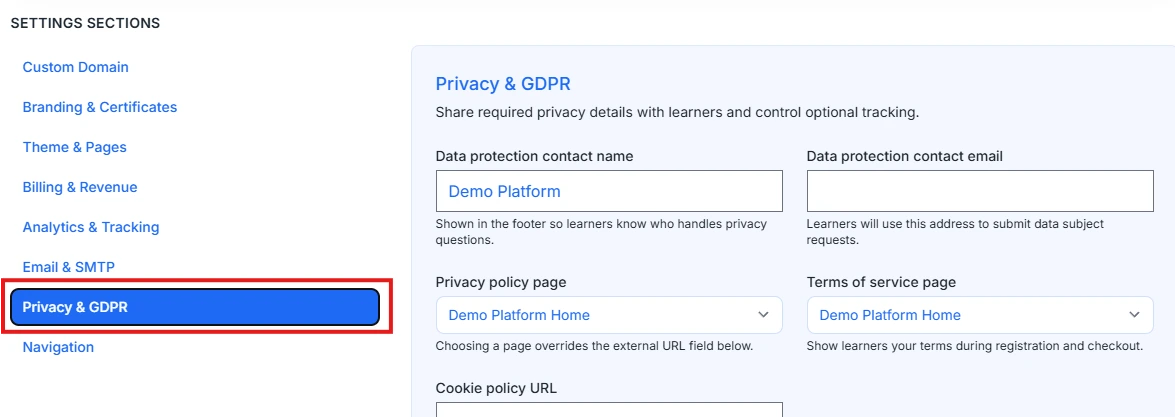
Configuring legal pages
In the Privacy & GDPR settings area, use the dropdown menus to select your published pages.
- Privacy Policy Page: Use the dropdown menu next to Privacy policy page to select the Privacy Policy page you created.
- Terms of Service Page: Use the dropdown menu next to Terms of service page to select the Terms of Service page you created.
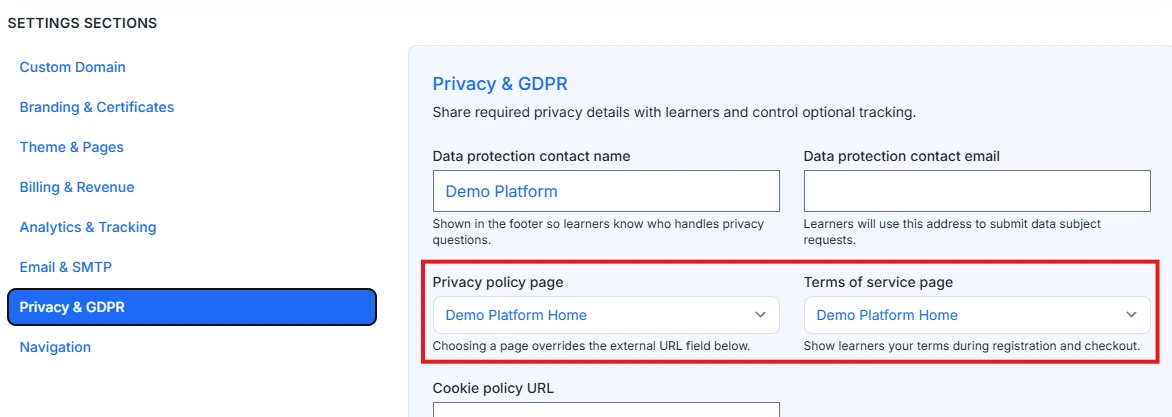
💡 Note: Selecting a page here overrides the separate Cookie policy URL and any external URL fields for these items.
Adding contact information (Optional but recommended)
For compliance and transparency, provide contact details for data protection inquiries.
- Data protection contact name: Enter the name or department responsible for data protection (e.g., "Legal Department"). This is shown in the footer.
- Data protection contact email: Enter the email address that learners should use to submit data subject requests.
Saving changes
- Click the SAVE CHANGES button at the bottom of the screen to apply your legal page selections.