

1️⃣ Open the Pages section
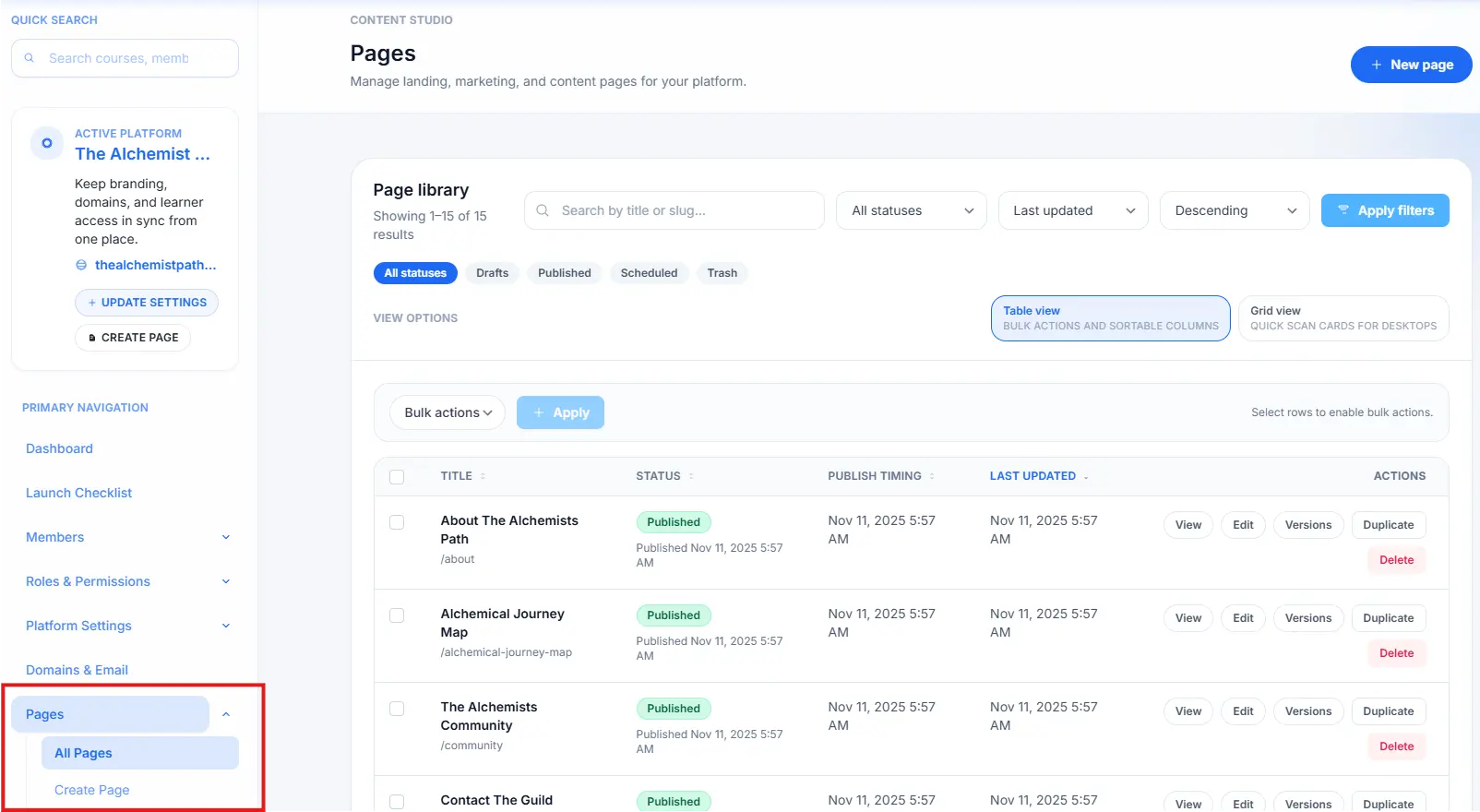
Navigate in the left sidebar:
Pages → All Pages
This page shows every existing page, its status, publish timing, and actions.
2️⃣ Click New page
In the upper-right corner, click New page.
A fresh page will be created and you’ll be taken into the page editor.
3️⃣ Open the Block Palette
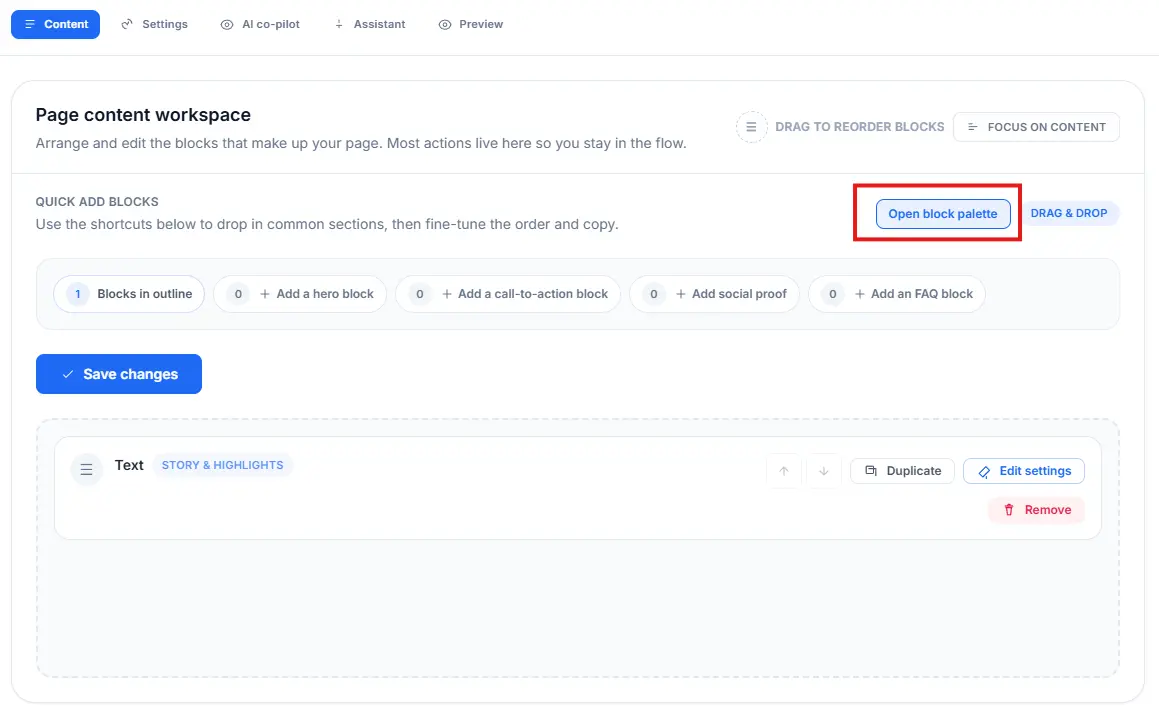
Inside the page editor, you’ll see the content workspace.
To add new blocks, click Open block palette.
4️⃣ Search for the Text block
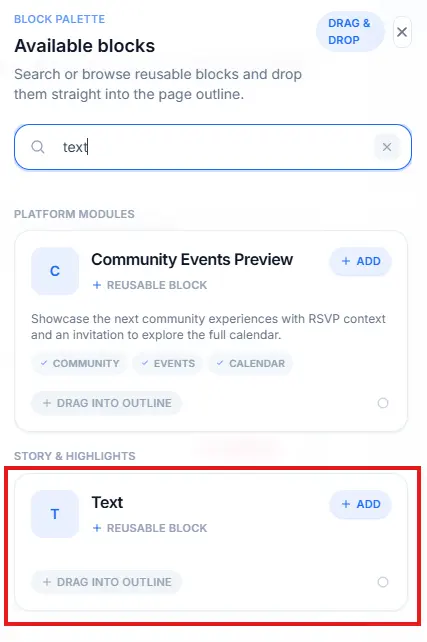
In the block palette, you can search for blocks.
Type text in the search bar and locate the Text (Story & Highlights) block.
You have two options:
- Click “+ Add” → the text block is inserted automatically.
- Drag the block into the outline.
5️⃣ Edit your text
Once the block is added, click Edit settings, then enter the text you want to show on the page.
You can reorder, duplicate, or remove blocks at any time.
6️⃣ Don’t forget to Save changes
When your content looks good, click Save changes.
Your new page is now live (or saved as draft, depending on your publish settings).
🎉 Done!
You’ve successfully created a page and added your first text content.
Repeat the process to add more blocks like Hero, Call-to-Action, FAQ, or custom sections.