Media upload tutorial for elearn.nu (drag & drop method)
1. Access the media library
-
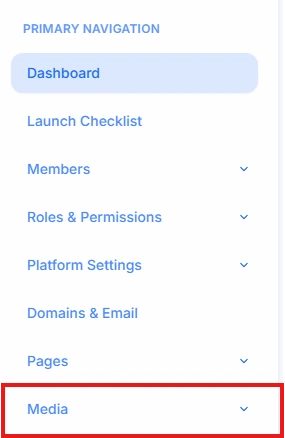
In the PRIMARY NAVIGATION menu, scroll down until you see the "Media" link.
-
Click on "Media" to navigate to the Media Library overview page.
Visual Reference: The "Media" link is highlighted in the main navigation.
2. Locate the upload area
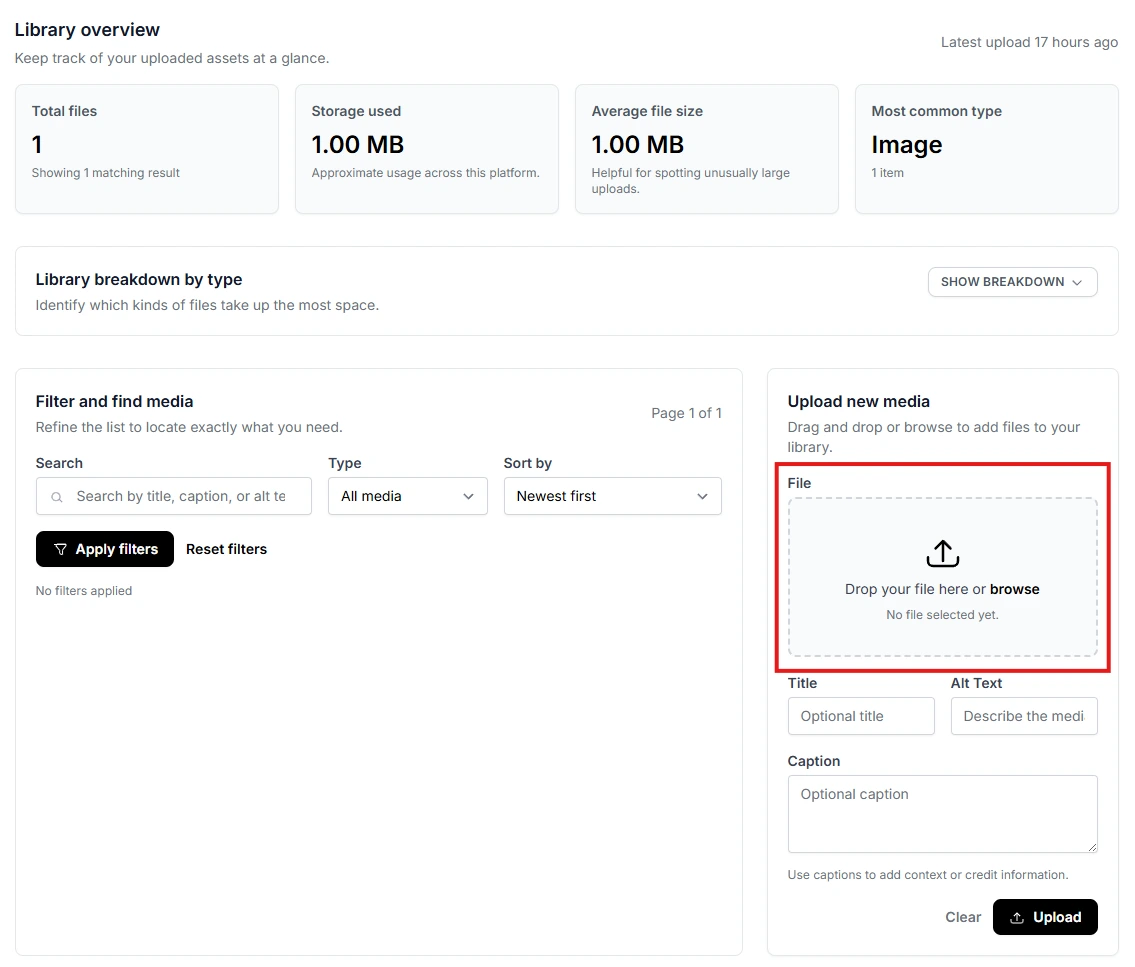
- Once on the "Library overview" page, find the "Upload new media" panel on the right side.
- The target for the drag & drop is the large, dashed box labeled "File".
3. Drag and drop the file
-
Find your media file (image, video, etc.) on your computer (e.g., desktop or folder).
-
Click and hold the file icon, drag it across your screen, and drop it directly into the "File" box on the elearn.nu page.
Visual Reference: The area where you drop your file is outlined in red.
4. Add metadata
After dropping the file, it's crucial to add descriptive metadata to aid in organization and accessibility:
- Title: A clear, concise identifier.
- Alt Text: A description for screen readers and search engines.
- Caption: Optional field for context or copyright.
5. Save and verify
-
After filling in the details, click the "Upload" button (located below the Caption field) to finalize.
-
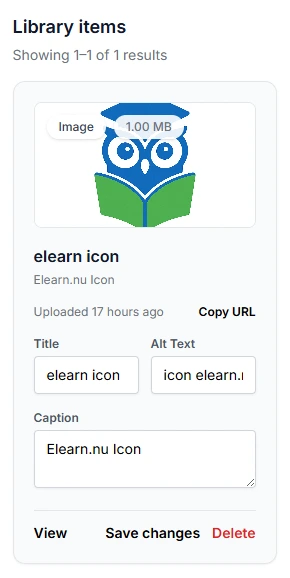
Your file will now appear in the "Library items" section, confirming the successful upload.
Visual Reference: Example of a completed library item with metadata.