

⚙️ Managing page settings on Elearn.nu
This tutorial guides you through managing the essential settings for any page on the Elearn.nu platform, using the "Settings" tab.
1. Accessing page settings
- Navigate to the page you wish to edit.
- Click on the "Settings" tab, usually located at the top of the editing interface.
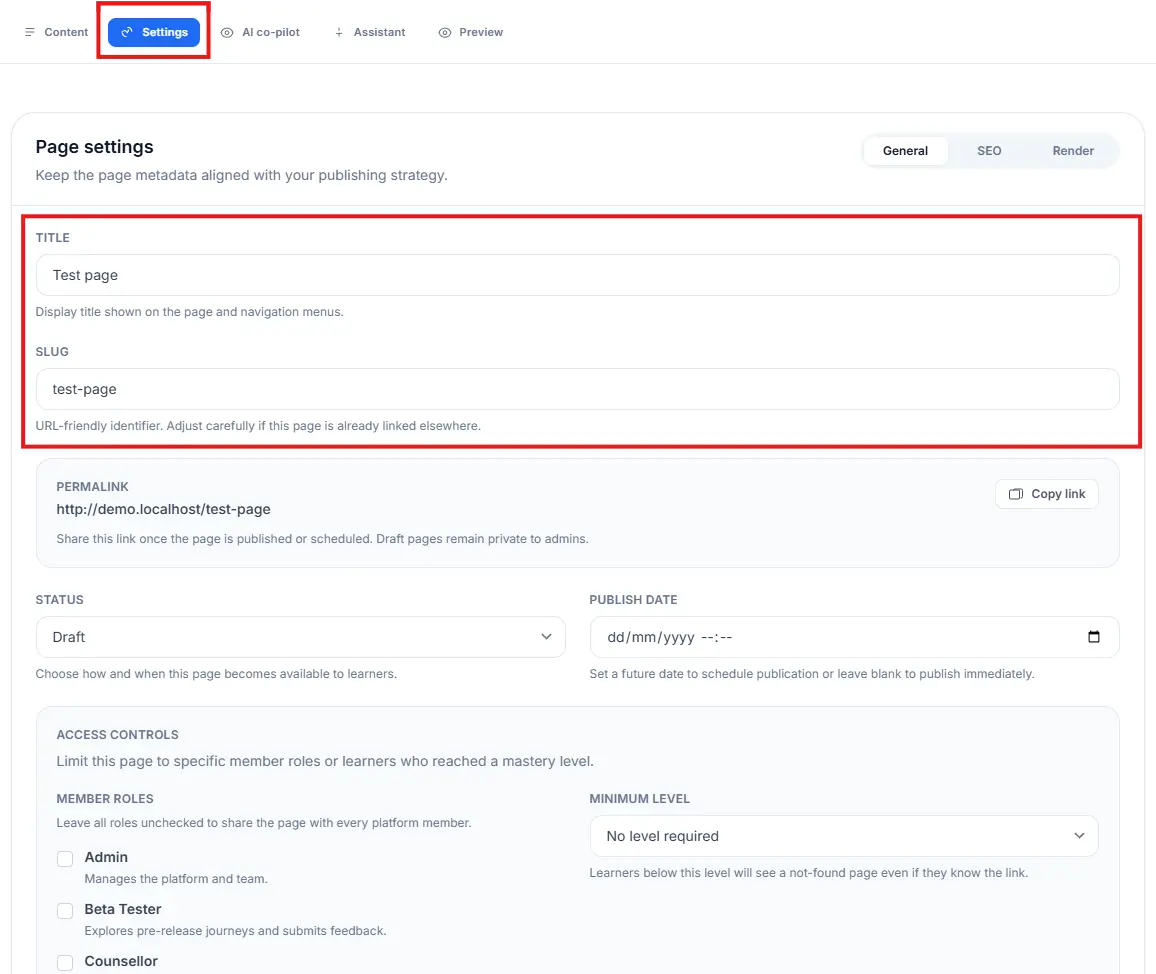
2. General page metadata
The General section, highlighted by the red box in the image below, controls the fundamental identity and URL of your page.
- TITLE: Enter the main title of your page here (e.g., "Test page"). This is the display title shown on the page itself and in any navigation menus.
- SLUG: The slug is the URL-friendly identifier for your page (e.g., "test-page").
- It is crucial for your page's PERMALINK (e.g.,
http://yourdomain.com/test-page). - Adjust this carefully, especially if the page is already linked elsewhere, as changing it will break existing links.
- It is crucial for your page's PERMALINK (e.g.,
3. Publishing and access controls
Status and publish date
- STATUS: Use the dropdown menu to control the publishing state of the page.
- Draft (default): The page is private and visible only to platform admins.
- Other options (like Published or Scheduled) control when the page becomes available to learners.
- PUBLISH DATE: You can set a future date here to schedule the page to be published automatically, or leave it blank to publish immediately once the status is changed from "Draft."
Access controls
This section allows you to limit who can view the page based on Member Roles or Minimum Level achieved.
- MEMBER ROLES: Check the boxes next to specific roles (e.g., Admin, Beta Tester, Counsellor) to restrict access to those groups. If all boxes are unchecked, the page is shared with every platform member.
- MINIMUM LEVEL: Set a numerical level requirement. Learners below this level will see a "not-found page" even if they have the direct link.
4. Other settings tabs
In addition to the General settings, you can manage other critical aspects of your page by clicking the following tabs:
- SEO (Search Engine Optimization): Manage meta-descriptions and other data to help search engines index your page correctly.
- Render: Configure advanced display and rendering options for the page content.